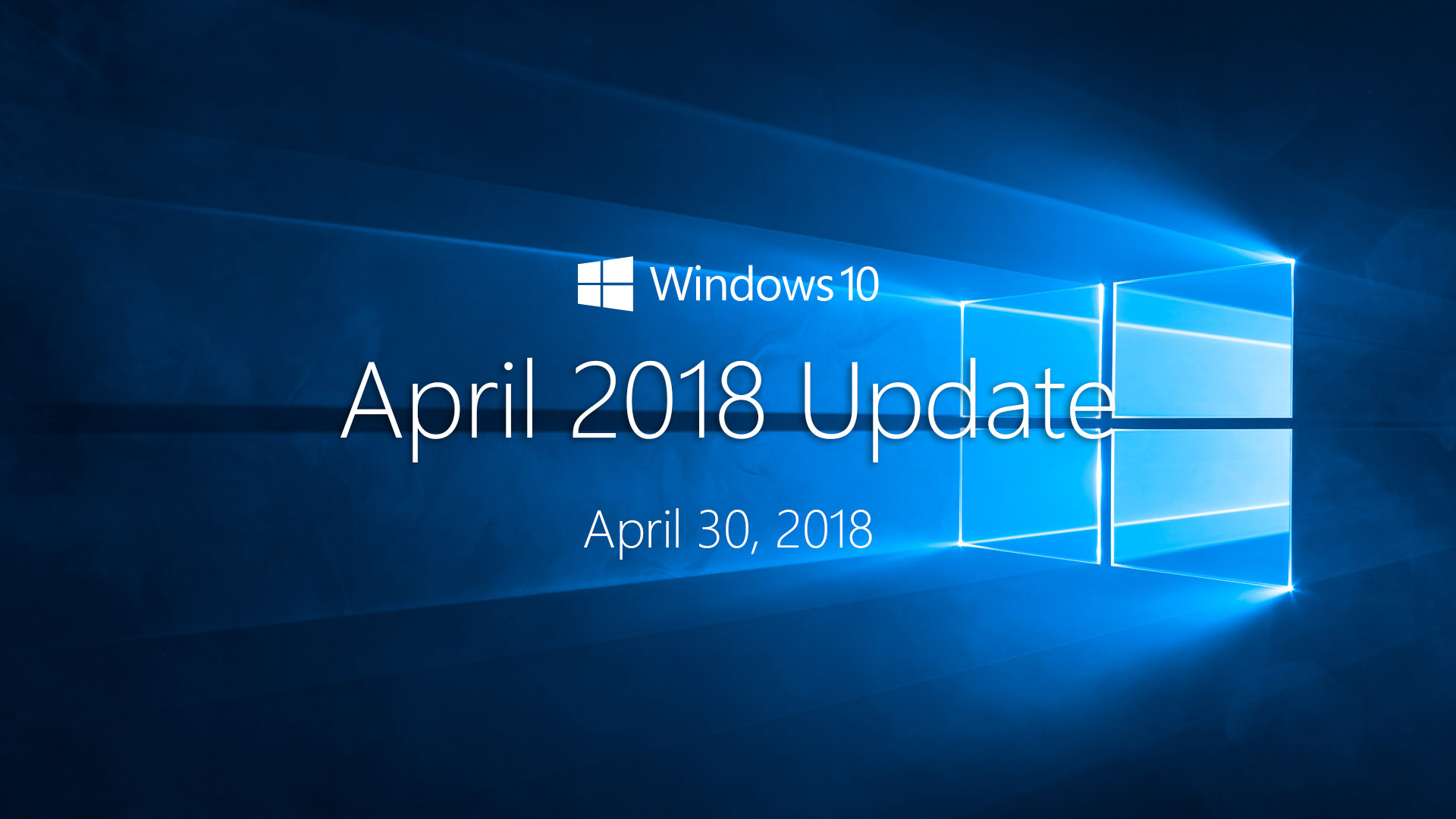
The "2018 update" primarily refers to the two major feature releases for Windows 10: the April 2018 Update (Version 1803) and the October 2018 Update (Version 1809). These updates introduced transformative features like Windows Timeline, Cloud Clipboard, and the "Your Phone" app, while also marking a significant turning point in Microsoft’s software quality assurance processes following the controversial rollout of Version 1809.
While "2018 update" can occasionally refer to major changes in search engine algorithms (such as the Google "Medic" update) or significant shifts in tax law (the Tax Cuts and Jobs Act), in a technical and computing context, it almost exclusively denotes these Windows 10 milestones. As of 2026, these versions are considered legacy software, long past their end-of-service dates, yet they remain critical case studies for IT administrators and historians of the "Windows as a Service" (WaaS) era.
The Evolution of Windows as a Service in 2018
In 2018, Microsoft was deeply committed to the "Windows as a Service" model. This approach aimed to move away from major OS releases every few years in favor of twice-yearly feature updates. The goal was to keep the operating system perpetually modern, but 2018 proved that this rapid cadence carried significant risks.
The updates released that year were intended to bridge the gap between desktop computing and the increasingly mobile-centric world. Microsoft sought to solve the problem of fragmented workflows—where a user might start a task on a smartphone and struggle to finish it on a PC. By analyzing the 2018 updates, we see the foundation of the modern, interconnected Windows environment we use in 2026.
The April 2018 Update (Version 1803): Enhancing Productivity
Released on April 30, 2018, Version 1803 (codenamed "Redstone 4") was generally well-received. It focused on reducing friction in the user experience and improving how Windows handled multitasking.
Windows Timeline and Cross-Device Continuity
The flagship feature of Version 1803 was Windows Timeline. This was an extension of Task View (Win+Tab) that allowed users to see a chronological history of the activities they had performed over the past 30 days. It wasn't limited to a single PC; if a user was signed into a Microsoft account, Timeline could track activities across different devices, including documents edited in Office 365 on an iPad or web pages browsed in Edge on an Android phone.
Timeline was a response to the "interruptive" nature of modern work. If a user forgot which specific file they were working on three days ago, Timeline provided a visual snapshot to jump back in. However, its reliance on developers to integrate their apps meant that its utility was largely confined to Microsoft’s own ecosystem.
Focus Assist: Managing the Digital Workspace
Previously known as "Quiet Hours," Focus Assist was a major overhaul of notification management. It allowed users to automatically toggle off notifications during specific times or while performing specific tasks, such as playing a game or presenting to a second screen.
In 2018, this was a vital addition for the growing "deep work" movement. Users could set a "Priority List" of apps and contacts that could still break through the silence, ensuring that while distractions were minimized, emergencies were still handled.
Nearby Sharing
Borrowing a concept similar to Apple’s AirDrop, Version 1803 introduced Nearby Sharing. This utilized Bluetooth and Wi-Fi to allow users to send files and URLs to other nearby Windows 10 devices. It eliminated the need for USB drives or emailing yourself files for quick, local transfers.
The October 2018 Update (Version 1809): Refining the Experience
The second 2018 update, Version 1809 (codenamed "Redstone 5"), was more ambitious but ultimately more troubled. It aimed to modernize the aesthetics of the OS and further integrate mobile devices.
Modernizing the Interface with Dark Mode and Cloud Clipboard
One of the most requested features at the time was a native Dark Mode for File Explorer. While Windows had a dark theme for some UI elements, File Explorer—the most-used tool in the OS—remained a jarring white. Version 1809 finally addressed this, though the initial implementation faced criticism for inconsistent grey tones across different legacy menus.
Version 1809 also introduced the Cloud Clipboard (Win+V). This was a revolutionary shift from the traditional "copy one thing at a time" model. Cloud Clipboard allowed for:
- Clipboard History: Storing multiple items (text and small images) in a list.
- Syncing: The ability to copy text on one PC and paste it on another, provided they were linked to the same Microsoft account.
The Integration of Mobile: The Your Phone App
Version 1809 marked the debut of the Your Phone app (now known as Phone Link). This was Microsoft’s most serious attempt to keep Windows relevant in an era dominated by smartphones. It allowed users to view and send SMS messages from their PC and sync photos directly from their Android device's camera roll without manual cables.
Snip & Sketch
This update also signaled the beginning of the end for the venerable Snipping Tool. Microsoft introduced Snip & Sketch, a modern UWP (Universal Windows Platform) app that made capturing, annotating, and sharing screenshots faster and more touch-friendly.
The 1809 Deployment Crisis: A Turning Point
The October 2018 Update is perhaps best remembered not for its features, but for the catastrophic bugs that plagued its launch. This period is often cited as the reason Microsoft eventually slowed its update cycle and changed its testing protocols.
The File Deletion Bug
Shortly after the initial release on October 2, 2018, reports began emerging of users losing personal files. Specifically, a bug in the "Known Folder Redirection" code caused the update process to delete files stored in the Documents, Pictures, and Music folders for some users.
This was an unprecedented failure for a production-ready OS update. Microsoft was forced to pause the rollout on October 6, 2018—the first time in the history of Windows 10 that a major feature update was pulled from distribution.
The 34-Day Pause and Re-release
The update remained unavailable for over a month while engineers worked on a fix and intensified testing. It was finally re-released on November 13, 2018. The fallout from this event led to several permanent changes:
- Windows Update Dashboard: Microsoft launched a transparent status page to track known issues.
- AI-Driven Rollouts: The company began using machine learning to identify hardware configurations that might be incompatible before offering the update.
- The "Seeker" Model: Microsoft became more cautious, only pushing updates to users who manually clicked "Check for updates" rather than forcing them on everyone immediately.
Technical Specifications and Comparative Analysis
The two 2018 updates shared the same fundamental system requirements but differed significantly in their build architecture and lifecycle.
| Feature / Specification | April 2018 Update (1803) | October 2018 Update (1809) |
|---|---|---|
| Release Date | April 30, 2018 | Oct 2, 2018 (Re-released Nov 13) |
| Build Number | 17134 | 17763 |
| Main New Feature | Windows Timeline | Cloud Clipboard / Dark Mode |
| Mobile Integration | Nearby Sharing | Your Phone App |
| Primary Issues | Chrome/Cortana freezing | Data deletion (major), ZIP file bugs |
| End of Service (Home/Pro) | Nov 12, 2019 | Nov 10, 2020 |
| End of Service (Ent/Edu) | May 11, 2021 | May 11, 2021 |
Legacy Support and Upgrading in 2026
As of 2026, the 2018 updates are considered "end-of-life" (EOL). This means they no longer receive security patches, bug fixes, or technical support from Microsoft. Running these versions in a modern environment poses significant security risks, as vulnerabilities discovered over the last eight years remain unpatched in these specific builds.
Why Some Systems Still Use 2018 Builds
Despite the risks, some niche systems might still be found running Version 1809. This is usually due to:
- LTSC (Long-Term Servicing Channel): Version 1809 served as the base for the Windows 10 Enterprise LTSC 2019. These versions were designed for "mission-critical" devices (like ATMs or medical equipment) and have a much longer support tail—often up to 10 years for IoT versions.
- Legacy Hardware: Some older specialized hardware has drivers that are incompatible with newer versions of Windows 10 or Windows 11.
Troubleshooting and Path to Modernity
If you encounter a machine in 2026 still running a 2018 build, the priority is to move data to a secure, modern OS.
- Verification: Check your current version by typing
winverin the search bar. If it shows 1803 or 1809, the system is highly vulnerable. - Direct Upgrade: These versions can usually be upgraded directly to the final version of Windows 10 (22H2) or Windows 11, provided the hardware meets the TPM 2.0 and processor requirements.
- Media Creation Tool: In 2026, the built-in Windows Update might not reliably fetch the jump from 1809 to modern versions. Using the Windows 10 Media Creation Tool or an ISO to perform an "In-place Upgrade" is the most reliable method to preserve files while moving to a supported build.
Common Questions (FAQ)
Did the 2018 update really delete people's files?
Yes, the October 2018 Update (Version 1809) contained a bug that affected users who had enabled "Known Folder Redirection" but had empty or moved folders. The update script incorrectly identified these folders as redundant and deleted the contents. While it only affected a small percentage of users, the severity of the issue caused Microsoft to withdraw the update for over a month.
How do I check if I have the 2018 update?
You can verify your version by pressing the Windows Key + R, typing winver, and pressing Enter. If the version number is 1803 or 1809, you are running a 2018 update. Note that by 2026, these versions are no longer safe for internet-connected use without the specialized LTSC licensing.
Is Windows Timeline still available in 2026?
No, Windows Timeline was largely deprecated in later versions of Windows 10 and was removed in Windows 11. Microsoft shifted its focus away from the "Timeline" view toward "Recommended" files in the Start Menu and cloud-synced history within specific apps like Microsoft 365 and Microsoft Edge.
What was the "Medic" update of 2018?
While most users refer to Windows when searching for "2018 update," the Google Medic Update was a major broad core algorithm update in August 2018. It heavily impacted health and wellness websites (Your Money or Your Life - YMYL sites) by placing a higher emphasis on Expertise, Authoritativeness, and Trustworthiness (E-A-T).
Can I still download the 2018 updates?
Microsoft does not officially provide downloads for EOL versions like 1803 or 1809 on its main consumer pages. To acquire these for testing or legacy hardware support, you would need access to the Microsoft Volume Licensing Service Center (VLSC) or a Visual Studio Subscription (formerly MSDN).
Final Recommendation for 2026
If you are managing a device that is still on a 2018 update in 2026, immediate action is required. The lack of security updates for over half a decade makes these systems easy targets for modern malware and ransomware. Your first step should be a full system backup, followed by a clean installation of a modern, supported operating system like Windows 11 or a long-term supported Linux distribution if the hardware is too old for current Windows requirements.
For IT professionals, the 2018 updates remain a reminder of the importance of staged rollouts. Never deploy a major feature update to an entire fleet simultaneously; always utilize a "pilot" group to identify potential failures before they become organization-wide disasters.