Merging multiple PDF documents into a single, cohesive file is a frequent requirement for professionals, students, and system administrators working within the macOS ecosystem. In 2026, Apple’s native utility tools and modern third-party applications offer highly efficient workflows that eliminate the need for insecure, ad-supported online conversion sites. This guide details every official, reliable method to combine PDF files on a Mac, leveraging built-in applications like Preview and Finder, as well as advanced alternatives for complex enterprise environments.
Native macOS PDF Merging via the Preview Application
The Preview app remains the most accessible, zero-cost method for combining PDF documents on any Mac running macOS Sonoma, macOS Sequoia, or later versions. Preview allows users to manipulate page orders, extract individual pages, and append entire documents with minimal friction.
To successfully merge files using Preview, execute the following procedure:
- Open the primary PDF document you want to serve as the beginning of your final merged file by double-clicking it in Finder.
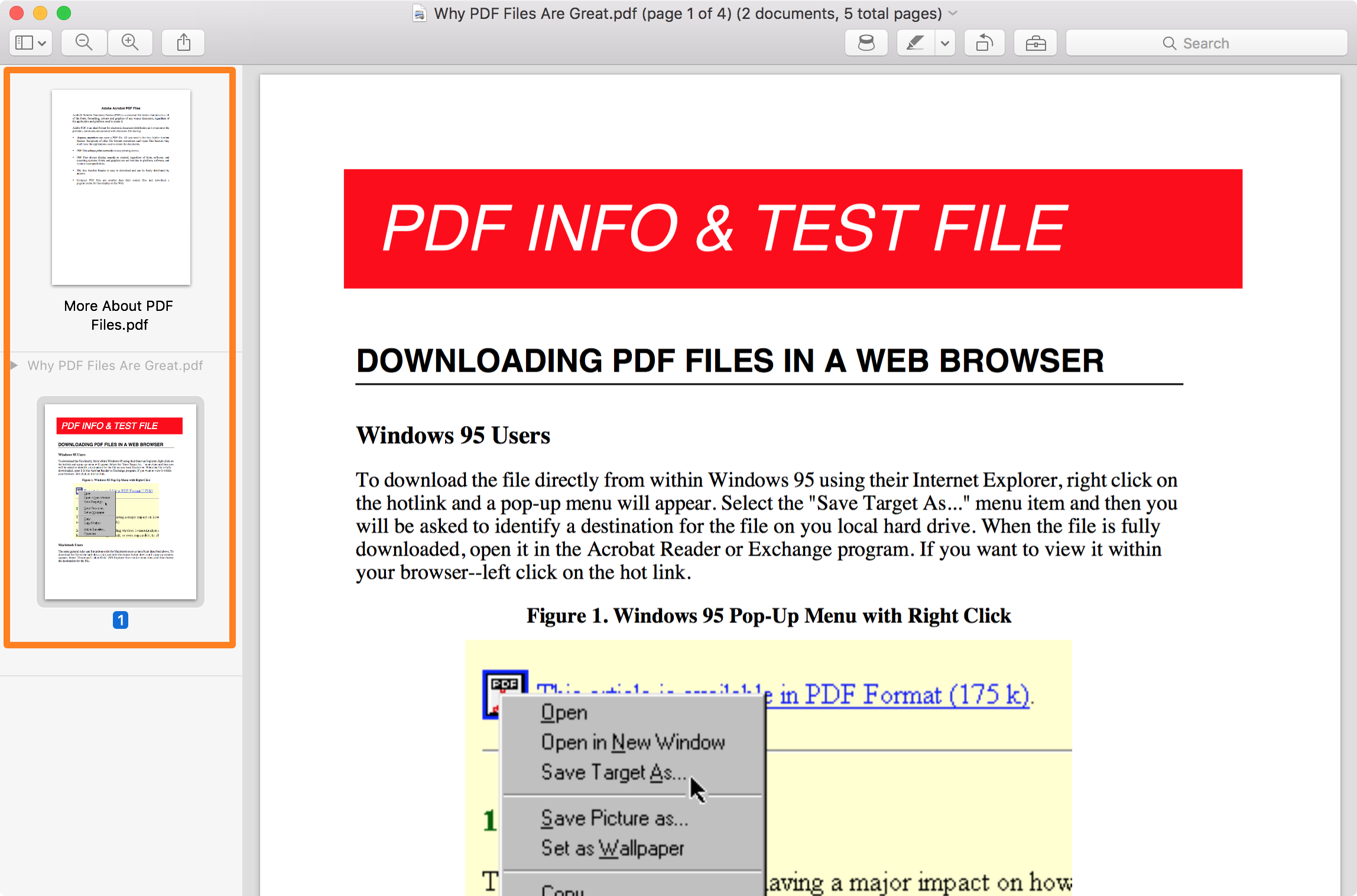
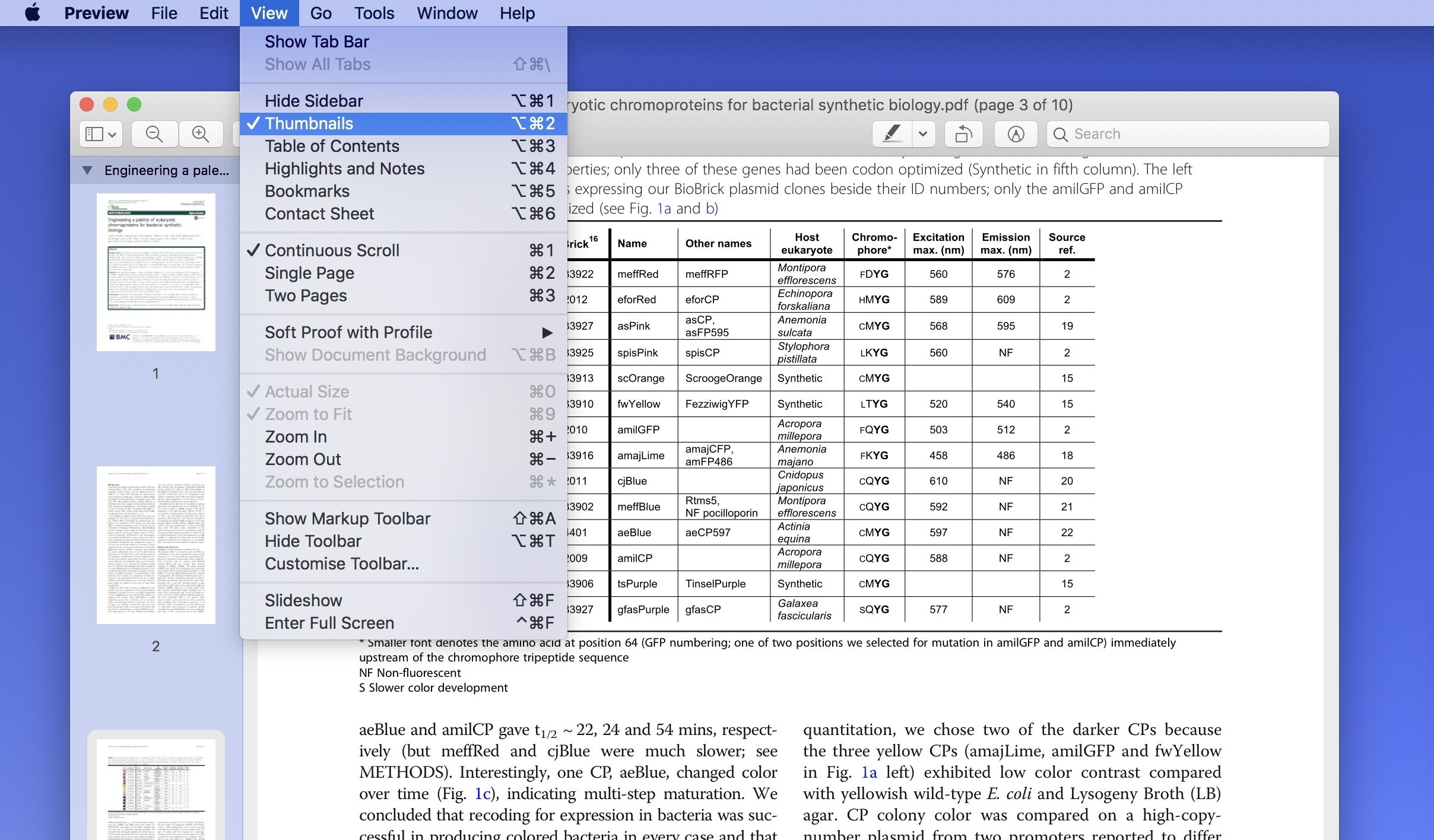
- Navigate to the top menu bar, click on View, and select Thumbnails from the dropdown menu to expose the sidebar displaying page previews.
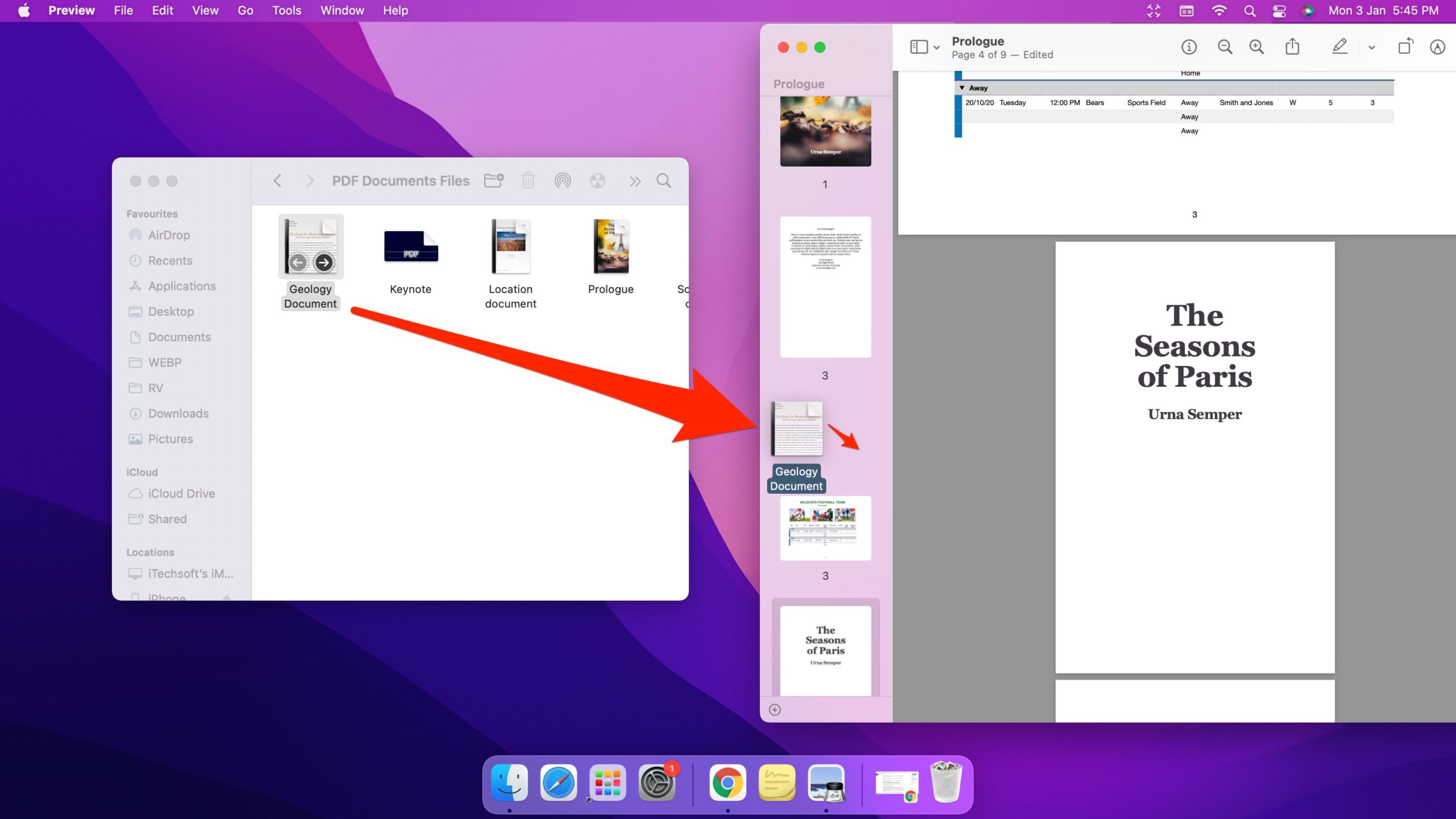
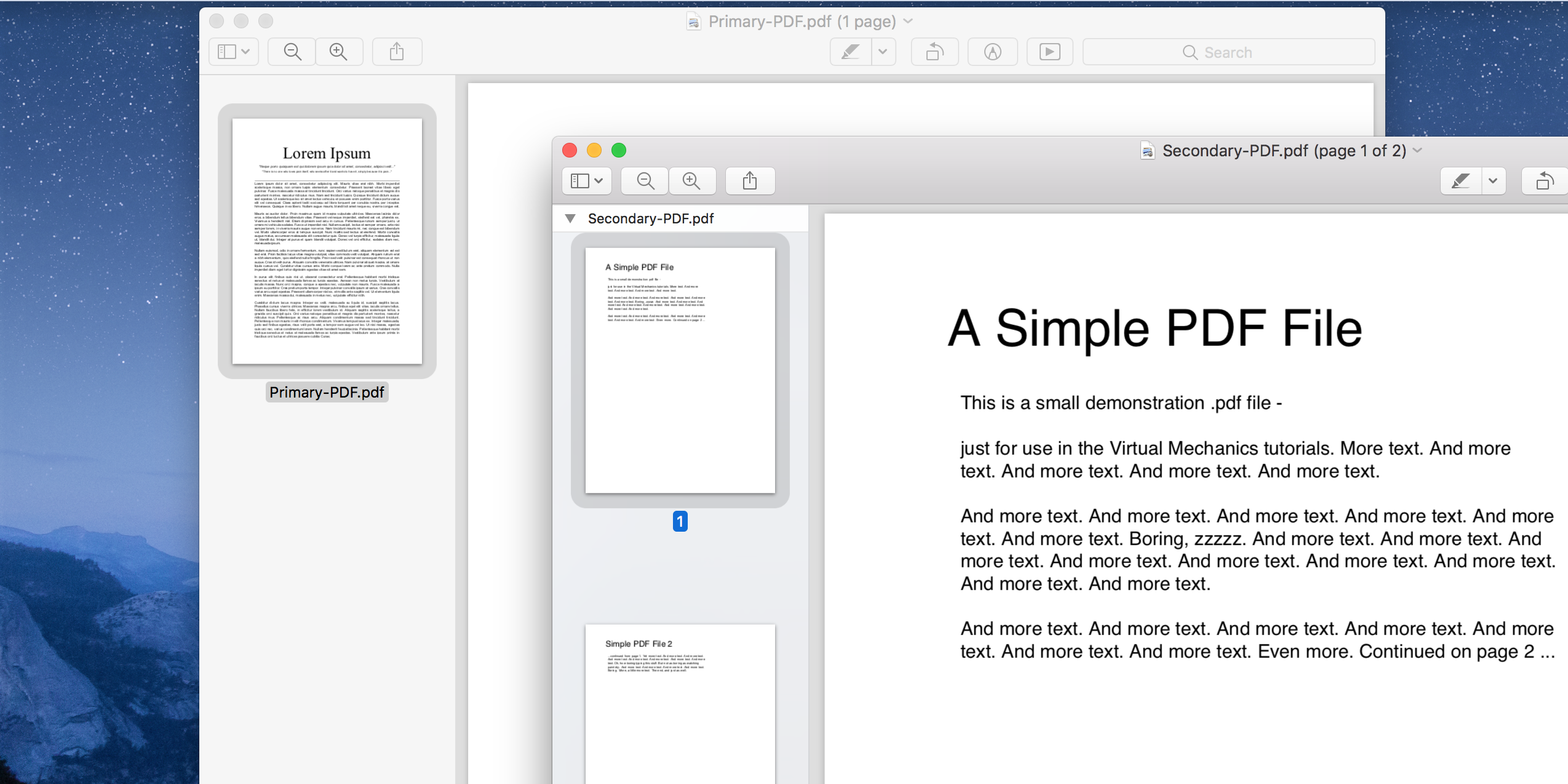
- Drag and drop the second PDF file directly from your desktop or Finder window into the Preview sidebar. Alternatively, you can click Edit in the top menu bar, select Insert, and choose Page from File to browse your local directory.
- Position the newly imported pages by clicking and dragging their thumbnails up or down within the sidebar until they match your desired sequence.
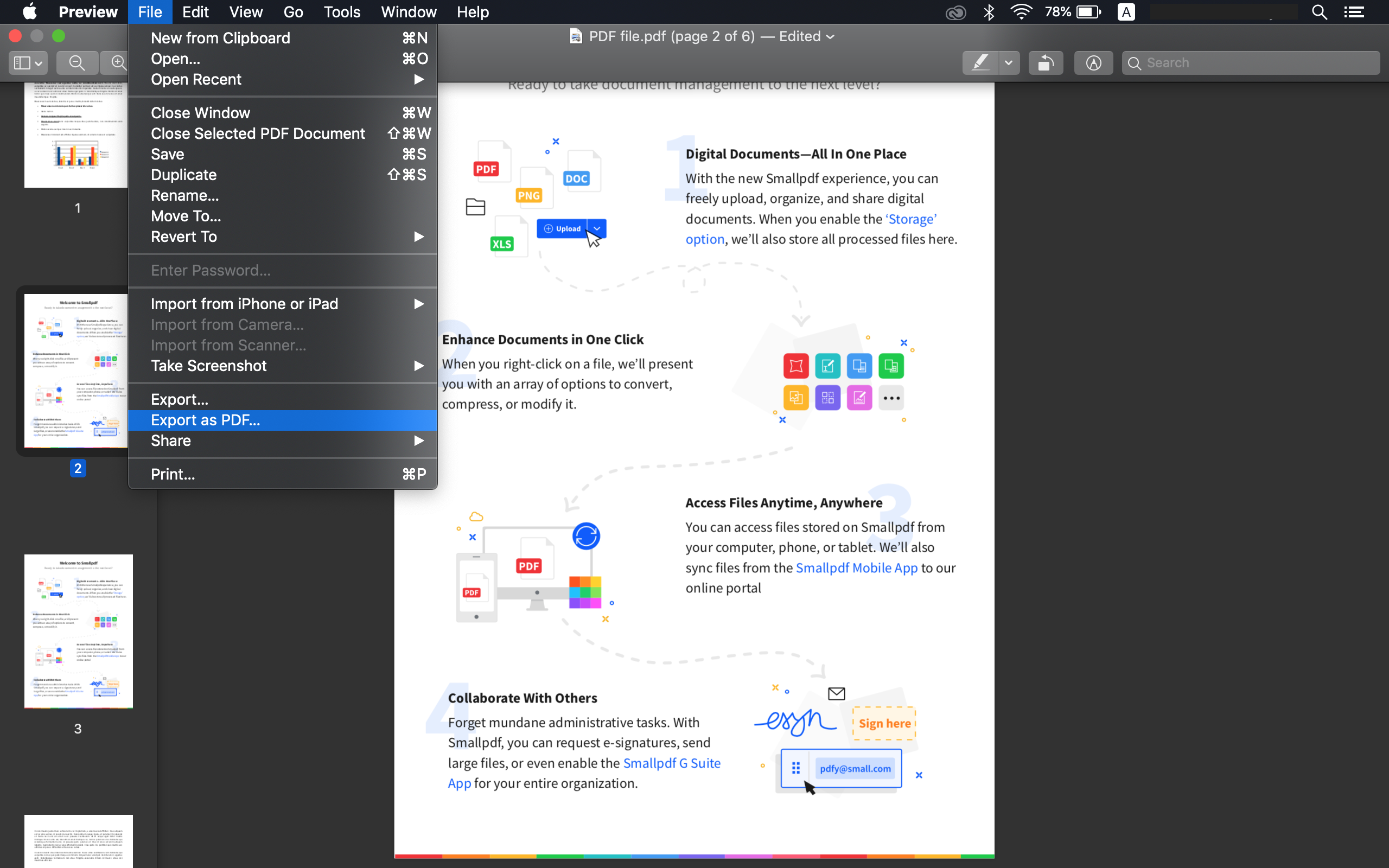
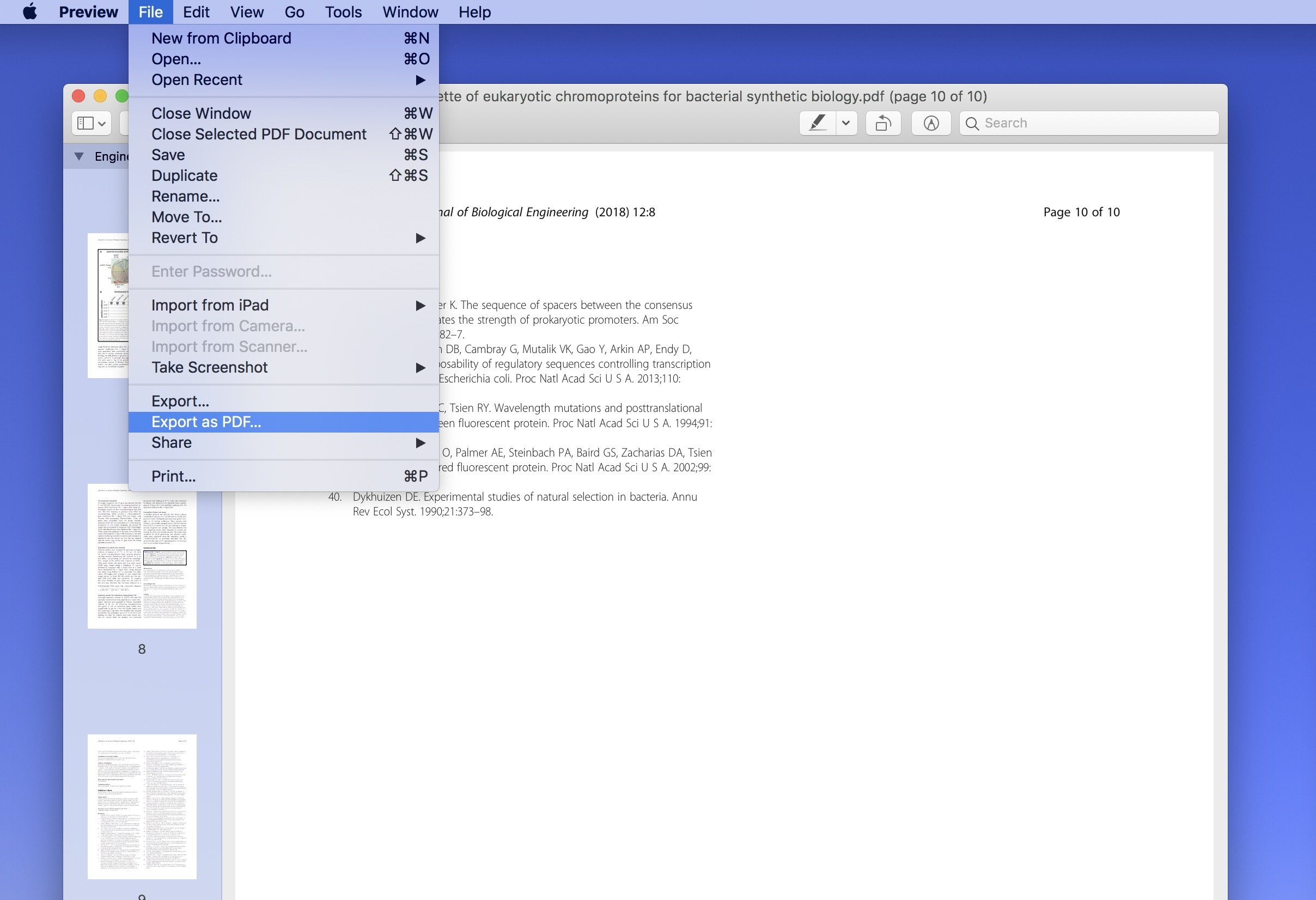
- Click File in the top menu bar, select Export as PDF, choose your destination folder, rename the file if necessary, and click Save to generate the unified document.
Expert Insight on Preview: When working with large multi-gigabyte engineering or medical PDF blueprints, Preview may temporarily spike memory usage. Ensure you save incremental backups of your working files before executing large batch insertions to prevent application hangs during intensive rendering cycles.
Instant PDF Combination Using Finder Quick Actions
For users seeking maximum speed without opening a dedicated interface, macOS provides a contextual Quick Action workflow natively embedded within Finder. This method bypasses application launches entirely, making it ideal for rapid administrative tasks in 2026.
Follow these steps to merge PDFs using Finder Quick Actions:
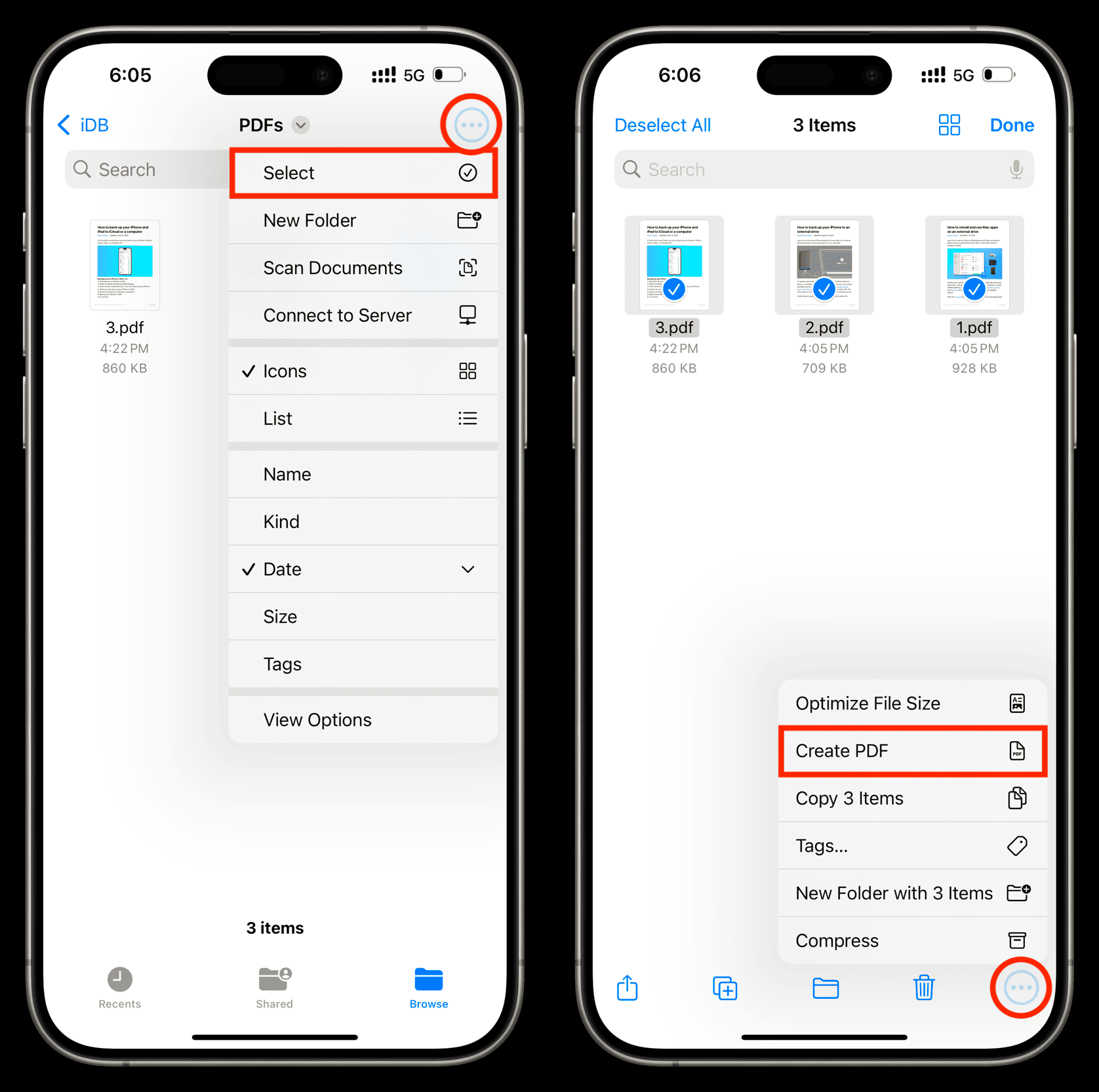
- Open a Finder window and select all the PDF files you intend to combine. You can select multiple files by holding down the Command key while clicking each document, or by dragging a selection box around them. Ensure the files are named or ordered alphabetically if their sorting sequence matters.
- Right-click or control-click on the highlighted group of selected PDF files to open the contextual menu.
- Hover over Quick Actions in the menu list.
- Click on Create PDF. macOS will instantly process the files and generate a new document named "Workflow.pdf" or "Combined.pdf" directly within the same directory.
- Rename the newly generated file immediately to maintain file system organization.
While this Finder Quick Action is exceptionally fast, it relies entirely on alphabetical or numerical file naming conventions to determine page order. If your files are named arbitrarily (e.g., scan_001.pdf, invoice_final.pdf, cover.pdf), you must rename them sequentially (01_cover.pdf, 02_invoice.pdf) before running the action to ensure proper document assembly.
Advanced Document Management: Third-Party Solutions Compared
When native macOS utilities fall short of complex enterprise document requirements—such as handling encrypted files, maintaining interactive form fields, or batch-processing hundreds of documents—third-party applications become necessary. The following comparison table outlines the most robust PDF management solutions available for Mac in 2026.
| Application Name | Primary Strengths | Encryption & Security Handling | Cost Model | Best Suited For |
|---|---|---|---|---|
| Apple Preview | Zero installation, native integration, free | Standard password removal and application | Free (Built-in) | Casual users, light administrative tasks |
| Adobe Acrobat Pro | Industry standard, advanced form retention, OCR | Enterprise-grade 256-bit AES encryption | Subscription ($19.99+/mo) | Legal, financial, and corporate publishing |
| PDF Expert | Lightning-fast rendering, modern UI, deep macOS optimization | Robust password protection and redaction | Perpetual / Subscription | Power users, editors, and researchers |
| PDFpen (Luzmo) | AppleScript support, robust batch merging | Secure local encryption | One-time purchase | Automated workflows and script-heavy environments |
Troubleshooting Common PDF Merging Errors on macOS
Even with streamlined modern operating systems, technical hurdles can occasionally disrupt document merging workflows. Understanding the root causes of these errors saves valuable troubleshooting time.
Password-Protected and Encrypted Files
If you attempt to merge a PDF that possesses strict permission restrictions or owner passwords, native tools like Preview and Finder Quick Actions will fail or throw a generic error notification.
- Remedy: Open the restricted PDF in Preview, enter the valid owner or user password when prompted, navigate to File > Export as PDF, and save an unencrypted local copy. You can then successfully merge this new, unprotected file with your other documents.
Corrupted Font Embeddings and Missing Glyphs
Occasionally, combining PDFs generated from disparate software suites (e.g., CAD design tools, legacy web browsers, and Microsoft Word) results in missing text or garbled character glyphs in the final output.
- Remedy: Open each source PDF in Preview, select File > Export, and choose the native Quartz Filter option titled Reduce File Size or Generic PDF. This forces the rendering engine to flatten vector layers and rasterize problematic font embeddings before you attempt the final merge.
Massive File Size Bloat
Merging multiple high-resolution graphic PDFs often creates a bloated file that exceeds email attachment limits or cloud storage upload thresholds.
- Remedy: After combining your files, utilize Preview's built-in image compression filters or open the final document in a specialized optimization utility to strip redundant metadata, compress embedded raster images, and downsample structural layers without sacrificing critical legibility.
Frequently Asked Questions
Can I combine PDF files on a Mac without downloading any additional software?
Yes, you can easily combine PDF files natively using either the built-in Preview application or the Finder Quick Actions menu. Both methods require zero third-party downloads, operate entirely offline to guarantee data privacy, and are built directly into macOS.
Why is the "Create PDF" Quick Action missing from my Mac's Finder menu?
The Quick Action may be disabled in your macOS System Settings or your file selection may include non-PDF formats that invalidate the automated workflow. Navigate to System Settings > Privacy & Security or check your Finder extension settings to ensure Quick Actions are fully enabled.
How do I reorder pages after I have already combined multiple PDFs?
Open your merged PDF file in the Preview application, ensure the sidebar view is set to display thumbnails, and simply click and drag individual page thumbnails up or down to your desired sequence before saving the document.
Do online PDF merger websites pose a security risk to sensitive documents?
Yes, uploading sensitive financial, medical, or legal documents to third-party web-based converters exposes your data to potential interception, unauthorized server logging, and privacy compliance violations. Always utilize local native tools like Preview or trusted offline applications for confidential documents.
What should I do if a PDF file is locked and cannot be merged?
You must first unlock the file by opening it in Preview with its designated password, exporting a clean unencrypted copy to your local drive, and then using that newly exported copy in your merging workflow.
Secure Your Document Workflows Today
Mastering native macOS tools like Preview and Finder Quick Actions ensures that your daily document management remains fast, completely secure, and entirely free of third-party software subscriptions or privacy risks. Implement these structured workflows today to streamline your administrative processes. For enterprise-grade requirements involving advanced digital signatures, complex form fields, and batch automation, evaluate dedicated professional suites like Adobe Acrobat Pro or PDF Expert to maintain maximum productivity across your Apple device ecosystem.
![How to Merge PDF Files [3 Quick Ways]](https://cdn.sanity.io/images/f1uf71z4/production/9aa5ec374c2c0bf3e34c56fe3037d4b7e5eb2f5c-1408x770.png?w=3840&q=75&fit=clip&auto=format)