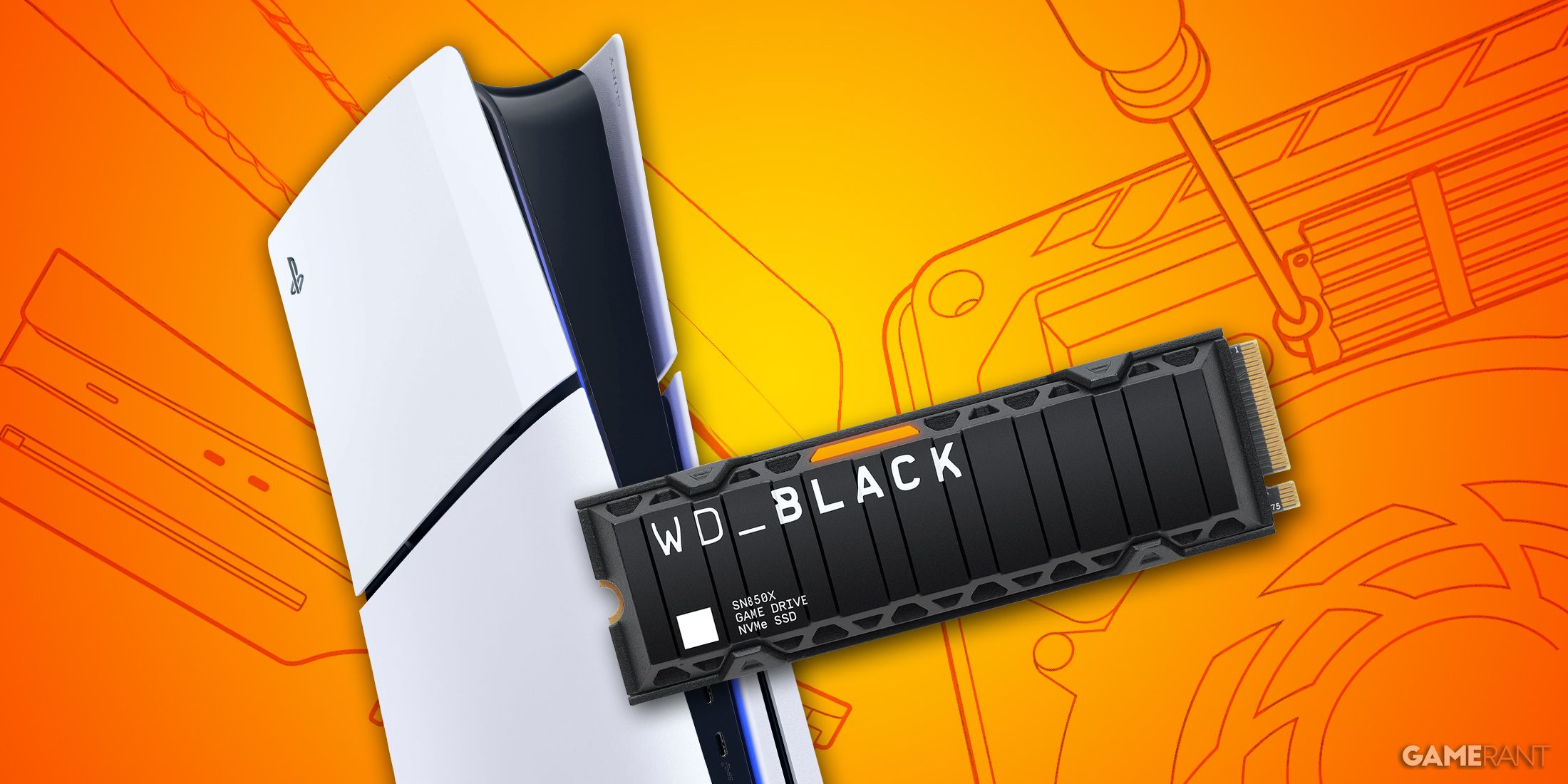
Expanding your PlayStation 5 storage capacity has become an essential upgrade as modern game file sizes continue to expand in 2026. Whether you are running an original launch model or the newer PS5 Slim hardware revisions, installing a compatible M.2 NVMe solid-state drive allows you to store and play both PS5 and PS4 titles directly from the expansion slot without compromising load times or graphical fidelity. This comprehensive technical guide details the precise requirements, structural preparations, step-by-step installation instructions, and thermal management strategies required to upgrade your console safely and efficiently.
Official Hardware Specifications and Technical Prerequisites for 2026
Sony Interactive Entertainment maintains strict hardware requirements for internal storage expansion to ensure that secondary drives match or exceed the performance of the custom onboard storage architecture. Failing to meet these specifications can result in game stuttering, prolonged asset streaming delays, or complete failure of the drive to initialize within the system firmware.
- Interface Type: PCI-Express Gen4 x4 M.2 NVMe SSD.
- Capacity Support: 250GB up to 8TB capacity modules.
- Read Speeds: A recommended sequential read speed of 5,500 MB/s or faster is mandatory.
- Form Factor: 2230, 2242, 2260, 2280, and 22110 (standard 2280 is the most widely supported form factor).
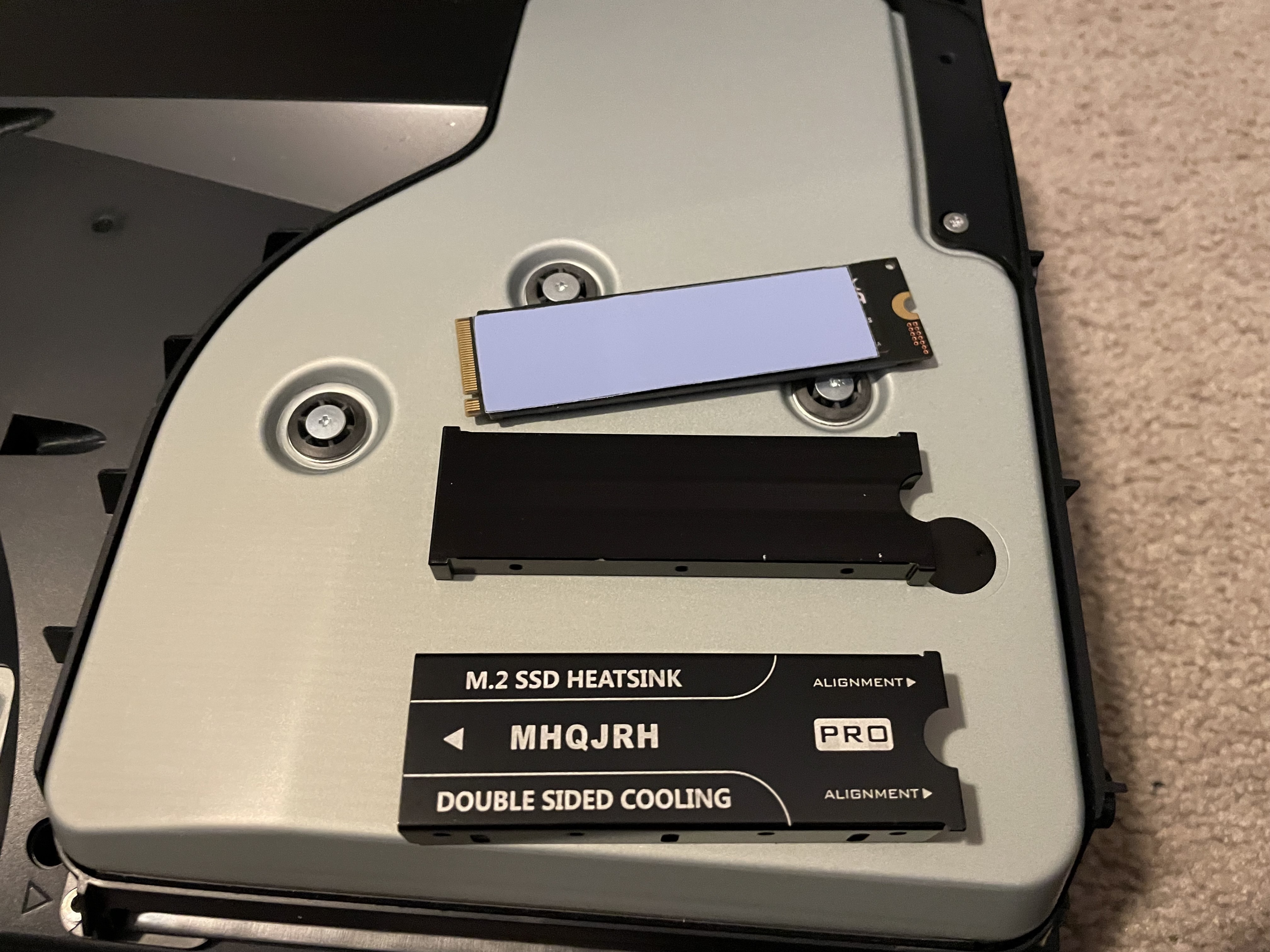
- Heatsink Requirement: A cooling structure, such as an integrated heatsink or a third-party applied thermal cover, is strictly required due to intense sustained data transfer rates.
Critical Physical Dimensions and Clearance Constraints
Understanding physical spatial limitations inside the console expansion compartment prevents costly hardware damage. The PlayStation 5 leaves very little margin for error regarding total thickness, particularly because the expansion bay is enclosed by a protective metal cover plate.
| Component Layer | Maximum Permitted Thickness | Clearance Guidelines |
|---|---|---|
| Total Drive Assembly | 11.25 mm | Must include both the SSD and heatsink combined. |
| Above the Circuit Board | 2.45 mm | Maximum height allowance above the primary PCB surface. |
| Below the Circuit Board | 1.12 mm | Maximum height allowance beneath the primary PCB surface. |
| Width Dimension | 25.0 mm | Standard width for all desktop and console M.2 drives. |
Essential Tools and Safety Precautions Before Opening Your Console
Before handling internal hardware components, proper preparation minimizes the risk of electrostatic discharge (ESD) and mechanical damage to the console casing or screws.
- Workspace Preparation: Clear a flat, well-lit, non-static surface such as a wooden table. Avoid carpeted areas that generate static electricity.
- Required Tools: Prepare a number 1 Phillips screwdriver or a standard cross-head screwdriver that fits snugly into the bay securing screw.
- System Shutdown: Power down your console completely by holding the power button until a second beep sounds, then unplug the AC power cord and all peripheral cables. Allow the unit to cool down for ten to fifteen minutes if it was recently running intensive software.
Step-by-Step Installation Procedure for Original and Slim Models
The physical layout differs slightly between the launch console and the revised hardware iterations, but the fundamental mechanics of accessing and populating the M.2 slot remain remarkably consistent.
- Position the Console: Place your PlayStation 5 on a soft cloth or protective mat with the PlayStation logo facing downward and the power button pointing away from you.
- Remove the Protective Cover: Grasp the top-left corner of the white cover plate with your right hand, gently pull it upward and slightly to the right to release the fastening clips, and slide it off the chassis.
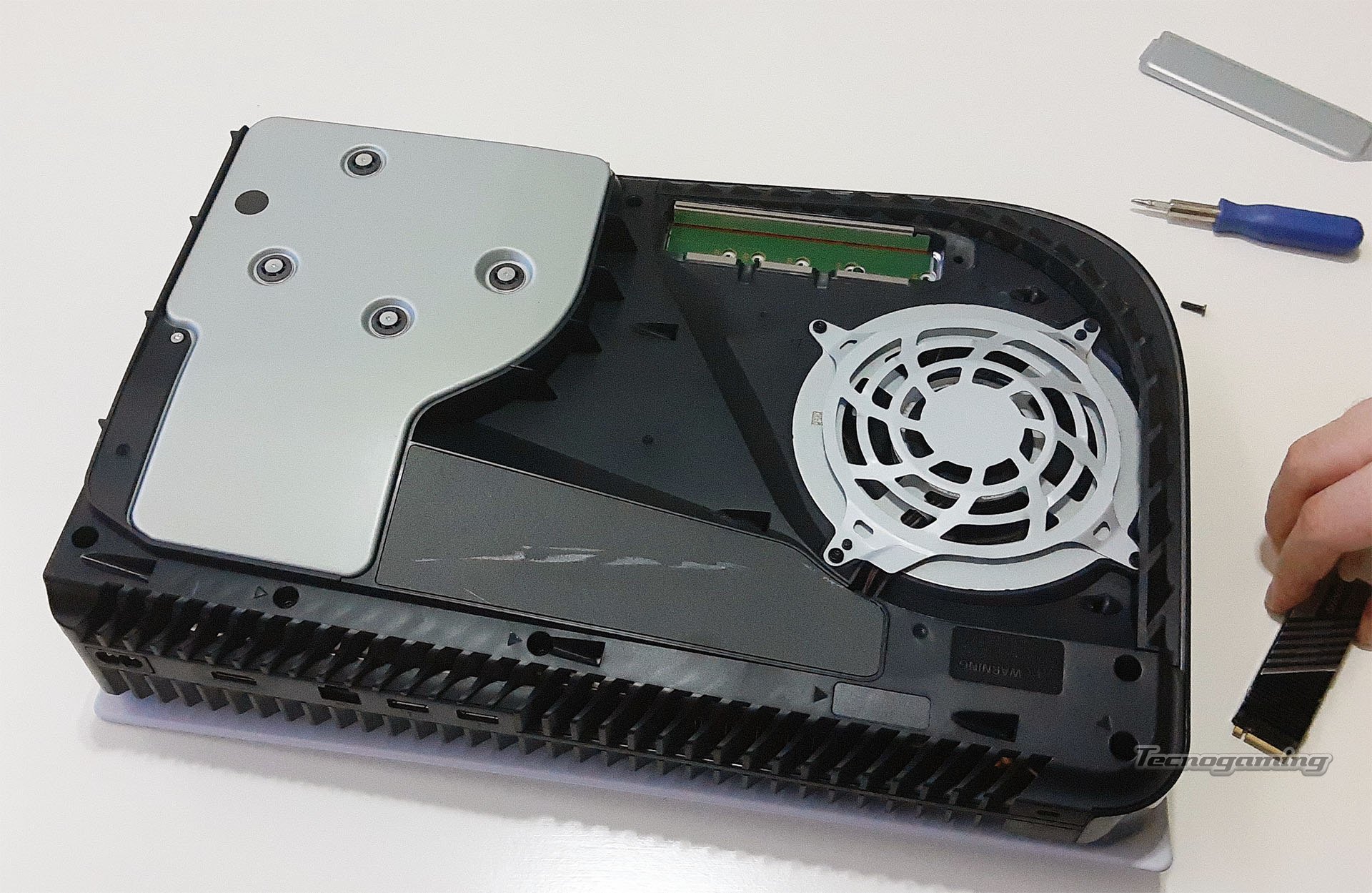
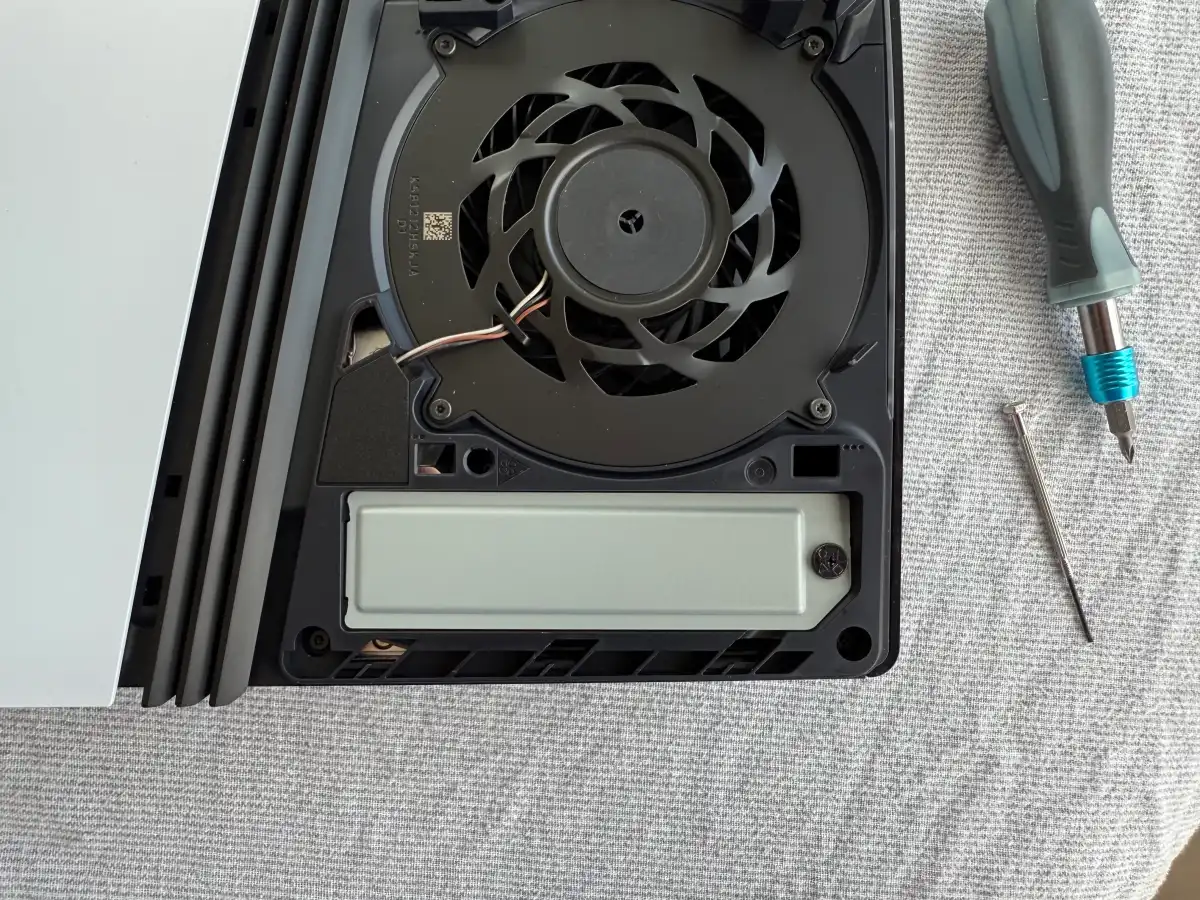
- Locate the Expansion Bay: Identify the long, rectangular metal cover plate secured by a single cross-head screw near the top edge of the exposed internal frame.
- Unscrew the Slot Cover: Carefully remove the single screw holding the metal expansion bay cover down. Store this screw in a secure container so it does not roll away. Lift the metal cover plate straight up and out.
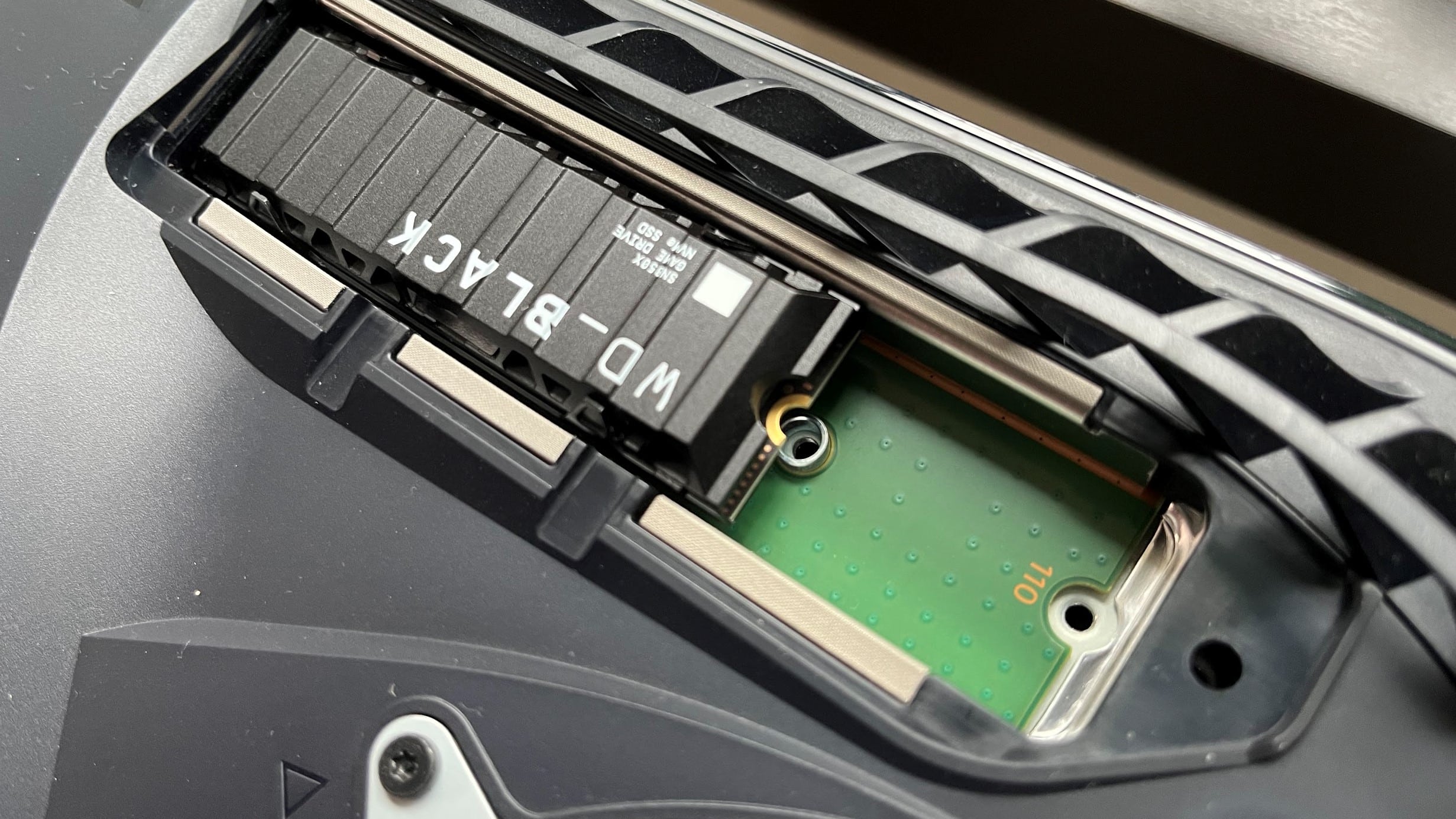
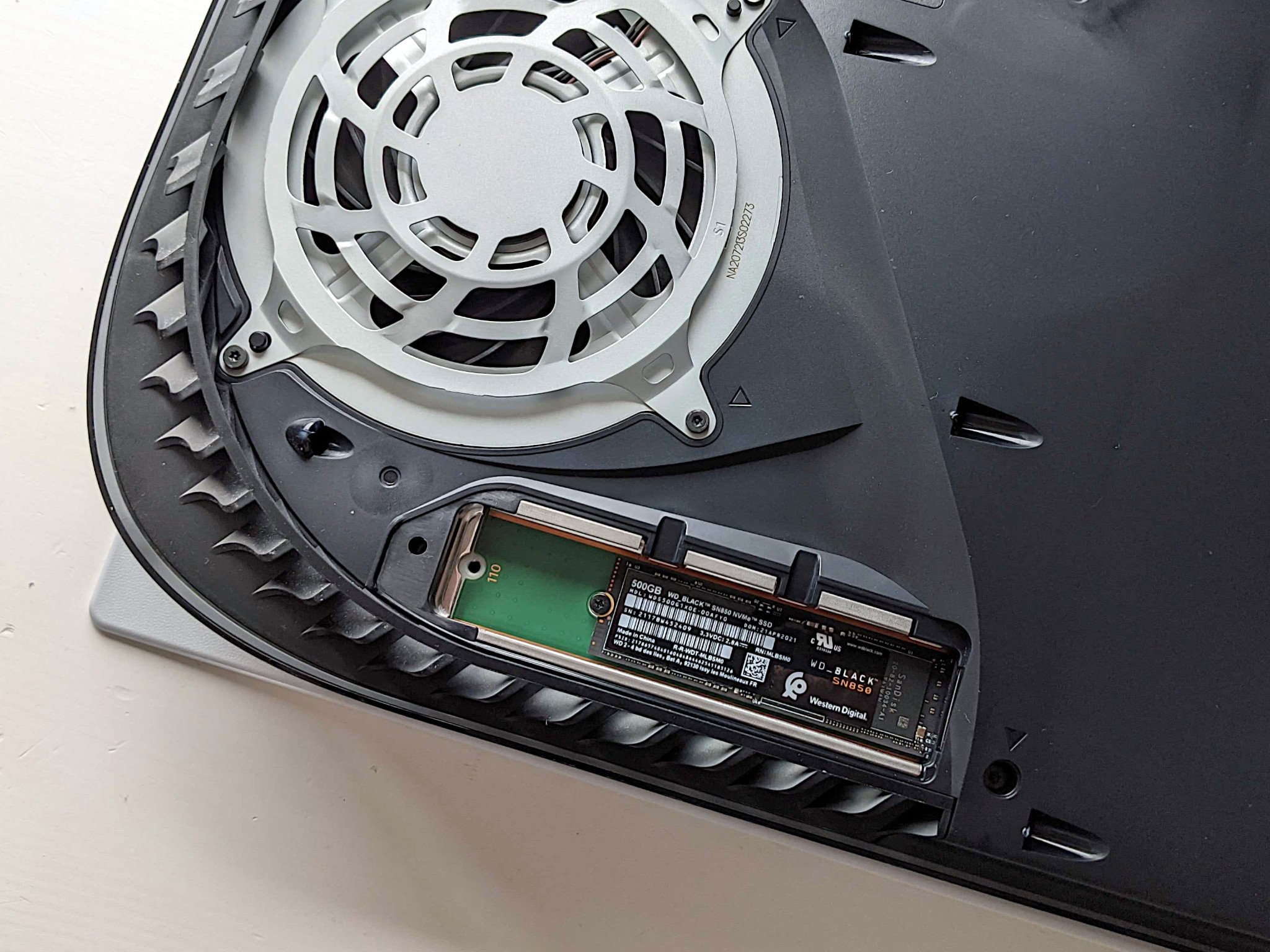
- Configure the Spacer: Inside the slot, you will find a mounting screw and a small metal spacer ring. Move the spacer ring to match the numerical designation of your drive's length (for example, the "80" slot for standard 2280 drives).
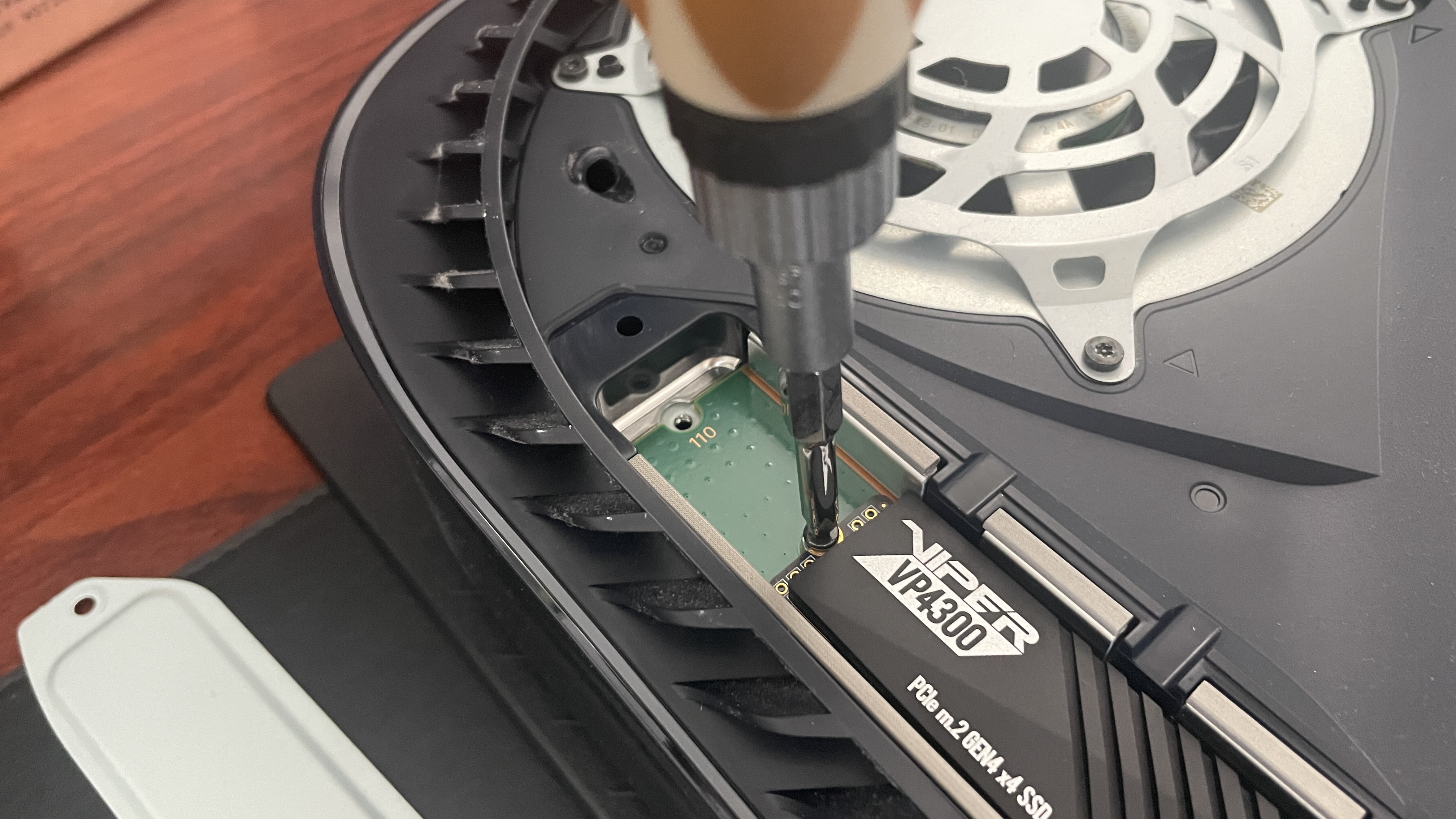
- Insert the M.2 SSD: Hold your M.2 SSD by its edges, align the notched connector pins on the drive with the notch inside the expansion slot, and insert it at a firm 45-degree angle.
- Secure the Drive: Push the opposite end of the SSD downward flat against the metal spacer ring until it rests securely, then fasten it in place using the mounting screw removed in the previous steps. Do not overtighten.
- Reassemble the Hardware: Replace the metal expansion bay cover, secure its fastening screw, and slide the outer plastic console cover back into position until you hear a distinct click.
Post-Installation Formatting and Storage Management
Once physical installation is complete, reconnect the power cord and HDMI cables, then power on your console. The PlayStation 5 firmware will automatically detect the newly installed hardware upon booting up.
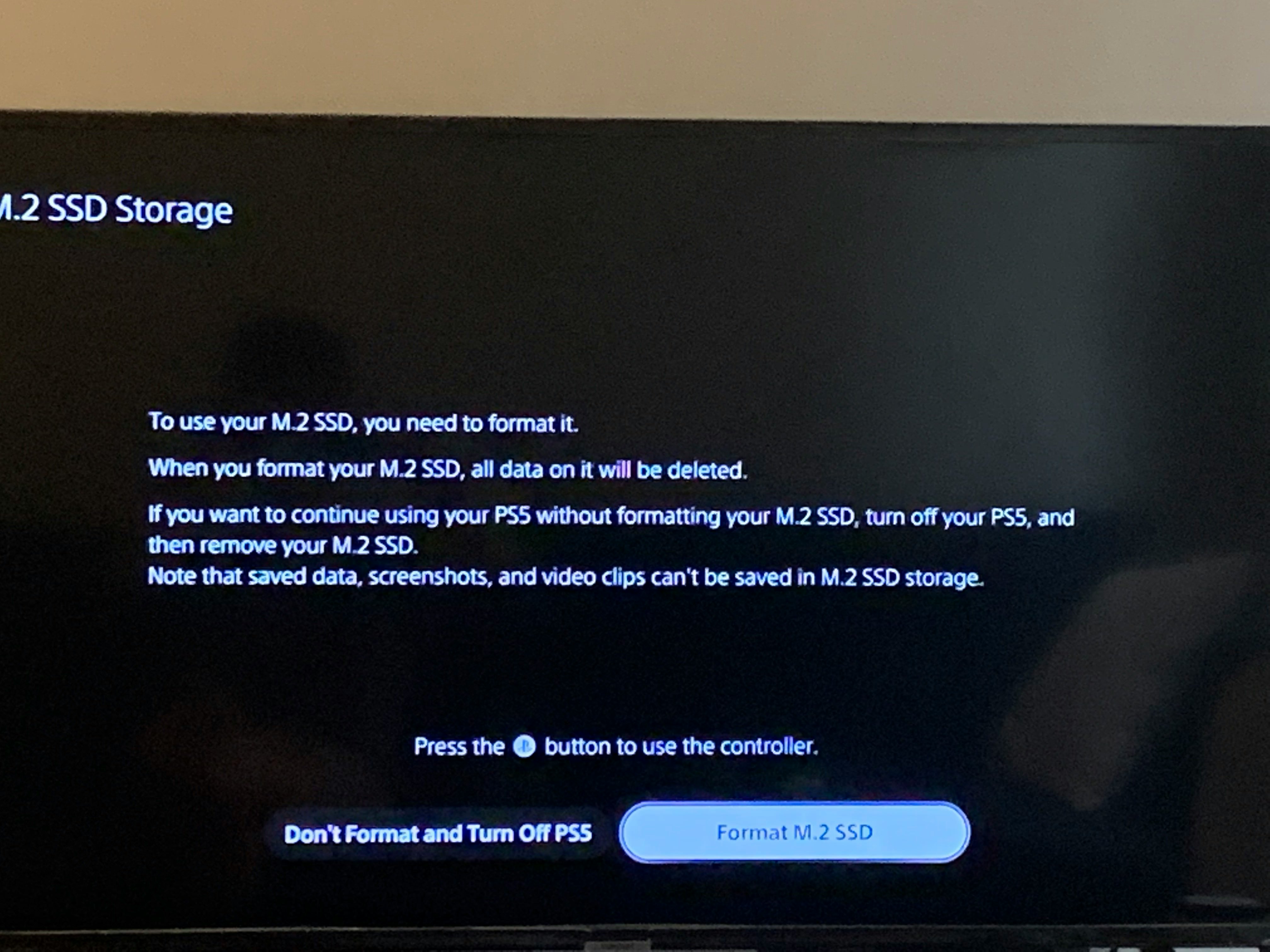
System Formatting Prompt: The console will display a graphical interface prompting you to format the M.2 SSD to ensure it integrates seamlessly with the internal filesystem architecture. Follow the on-screen prompts to complete this rapid process. A diagnostic speed test will run automatically, reporting the verified read speed of your installed drive for future performance reference.
To optimize your storage pool, navigate to your system settings, select Storage, and choose your default installation location for games and applications. You can freely transfer installed games back and forth between console storage and your new M.2 SSD without needing to redownload application data.
Comparative Overview of Top Recommended PS5 SSDs for 2026
Choosing the correct hardware ensures long-term reliability and peak performance under heavy gaming loads. The following hardware options represent top-tier, fully compatible solutions available on the market.
| SSD Model Name | Form Factor & Heatsink Status | Tested Read Speed | Optimal Use Case |
|---|---|---|---|
| WD_BLACK SN850X | Built-in Heatsink Model | Up to 7,300 MB/s | Maximum sustained gaming performance and thermal resilience. |
| Seagate FireCuda 530 | Integrated Heatsink Version | Up to 7,300 MB/s | Premium enterprise-grade durability and high write endurance. |
| Samsung 990 PRO | Dedicated Heatsink Edition | Up to 7,450 MB/s | Exceptional power efficiency and ultra-fast random read operations. |
| Crucial T500 | Integrated Heatsink Option | Up to 7,300 MB/s | Cost-effective high performance without sacrificing cooling efficiency. |
Frequently Asked Questions
Can I install an M.2 SSD that does not include a heatsink?
No, running an M.2 SSD without a heatsink inside a PlayStation 5 is strongly discouraged because extreme temperatures will cause thermal throttling and hardware degradation. You must install a compatible third-party heatsink if your chosen drive ships as a bare circuit board.
What happens if my SSD read speed is slightly below 5,500 MB/s?
Drives failing to meet the minimum required read speed may still technically fit and mount, but Sony's operating system cannot guarantee seamless asset streaming, which frequently leads to stuttering or crashing in high-speed open-world titles.
Will installing an M.2 SSD void my PlayStation 5 hardware warranty?
Adding an officially compliant M.2 SSD to the designated expansion slot provided by Sony does not void your standard console manufacturer warranty, provided you do not damage surrounding motherboard components during the process.
Can I use my old PS4 external USB drive alongside my new M.2 SSD?
Yes, external USB storage devices remain fully functional for storing and playing PlayStation 4 games, while the internal M.2 slot handles high-speed native PlayStation 5 software titles simultaneously.
How do I clean dust out of the expansion bay during installation?
Use a clean, dry can of compressed air held in an upright position to gently clear away accumulated dust from the metal compartment before inserting your new solid-state drive module.
Why is my PS5 not recognizing the newly installed M.2 SSD?
Power off the console completely, unplug it, remove the drive, and reinsert it to ensure the gold contact pins are pushed firmly and evenly all the way into the expansion slot connector interface.
Expert Upgrade Recommendation
Upgrading your storage infrastructure is the single most effective way to eliminate tedious game management and make room for massive gaming libraries. Ensure you purchase a drive with factory-fitted thermal dissipation components or install a low-profile aftermarket heatsink before securing the hardware inside your system. For tailored technical assistance or hardware compatibility verification, consult our hardware support desk or reach out to certified console repair technicians in your region.
:no_upscale()/cdn.vox-cdn.com/uploads/chorus_asset/file/22748661/ps5ssd2_2.jpg)